Free
$0
Free for good, with Pro free for 14 days. No card, no account.
- On and off from the menu bar
- Quick pauses: 15 minutes, 1 or 2 hours, or until tomorrow
- Keep the display on, or let it sleep
- Opens at login
A Mac menu bar app that keeps you Available in Teams, Slack and Zoom while you step away for a coffee, the door or the dog.
macOS 13.5 or later · Apple silicon and Intel · Pro free for 14 days
Awaynt runs on a Mac with macOS 13.5 or later. Send yourself the link and download it there.
Pick one of the breaks everybody takes, or slide to your own, and see what Teams would show while you’re gone.
Within four minutes of your last key or click, Awaynt moves the pointer 1 to 4 pixels and back, or presses F15, a key that types nothing. Touch anything and the wait starts over, so it never moves while you work.
Built for breaks, not for being gone. For anything longer than a short break, pause Awaynt and set your status yourself.
Without Awaynt, Teams would show you as Away for 5 of these 10 minutes. With it, you stay Available the whole time.
5 minutes is Microsoft Teams’ timer, and you can’t change it (Microsoft Support). Slack, Zoom and other chat apps keep their own timers, usually longer than Teams’, so the same nudge covers them too. Awaynt steps in within four minutes of your last key, however long your break lasts.
Drag Awaynt to Applications and open it like any other app.
Download free for MacMoving the pointer needs it. Awaynt tells you why, then macOS asks once, in its own window.
Awaynt doesn’t read what you type, record your screen or send anything anywhere.
On a Mac your company manages, IT may need to allow it first. To take it back, switch Awaynt off in System Settings › Privacy & Security › Accessibility.
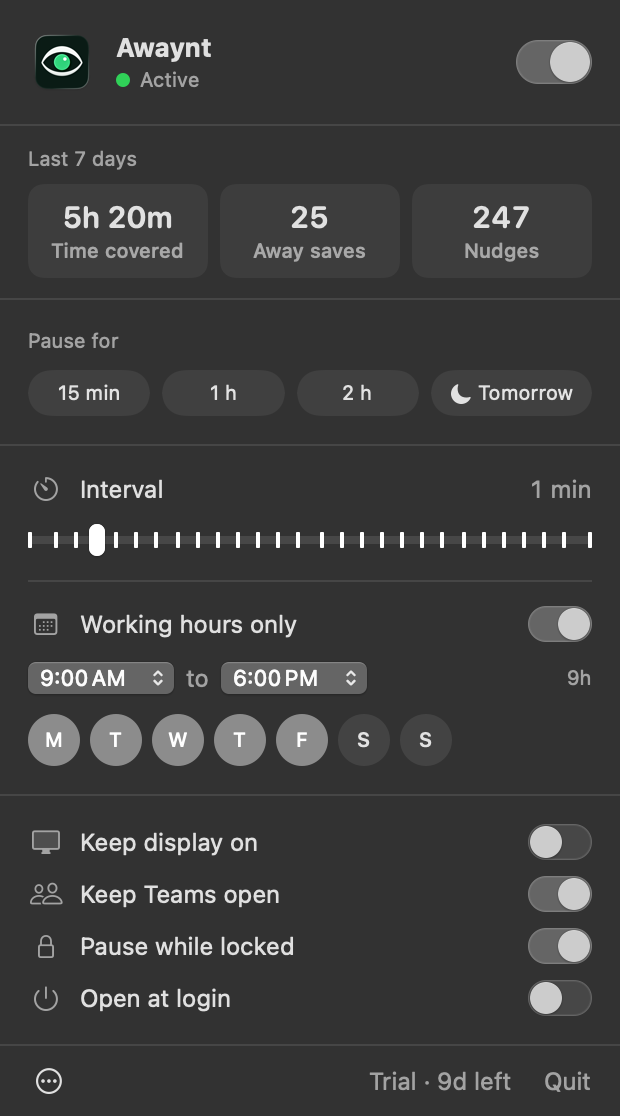
Awaynt is on, up in your menu bar, like the one above. Go take the break.
$0
Free for good, with Pro free for 14 days. No card, no account.
$14.99
Teams quits at 2 pm while you’re out. Awaynt opens it again, so you come back Available, not Offline.
One payment, no subscription, every future update included. Everything in Free, plus:
Secure checkout by Polar, our reseller. Or buy later from inside the app.
Your licence key arrives by email. Enter it in Awaynt on your Mac.
Awaynt covers the coffee, the door and the dog. It isn’t for faking work, billing time you didn’t work or getting around your company’s rules.
It sits in your menu bar and your Applications folder like any other app.
No account, no analytics. It only goes online for your license and updates. Privacy policy.
That depends on your company’s or client’s policies, so check them first, and if they don’t allow it, don’t use it. Awaynt is for the short breaks everybody takes, not for being away for hours or getting around a rule. It’s an ordinary app that shows in your menu bar and in your Applications folder.
Not while your timer is running. If a client pays you by the hour or tracks your activity with a tool like Hubstaff, Upwork or Time Doctor, stop the timer or pause Awaynt when you step away. A break is a break: Awaynt keeps your chat status from flipping during it, and it should never count as time worked.
Teams, Slack, Zoom and any other app that sets your status from your Mac’s idle time. It can’t change a status set from your phone or your calendar.
Of a sort, but a quiet one. A jiggler keeps the pointer moving all the time. Awaynt never moves it while you work: it waits until you’ve been away for two minutes, then nudges the pointer a few pixels and back within the next two. Pause it whenever you like; with Pro it also rests outside your working hours and while your Mac is locked.
macOS 13.5 or later, on Apple silicon or Intel, and the Accessibility permission. Awaynt asks for it the first time and reminds you if it’s missing.
Quit Awaynt from its menu and drag it from Applications to the Trash. To clear everything it kept, also delete ~/Library/Preferences/app.awaynt.mac.plist and its Keychain items, and switch it off under Privacy & Security › Accessibility.
The first time, macOS asks whether you want to open an app downloaded from the internet: choose Open. If it says it can’t verify the developer, don’t work around it. Write to hello@awaynt.app and we’ll sort it out.
Working hours, Keep Teams open and Pause while locked turn off. Everything else keeps working for free, for as long as you use it.