Mouse jigglers for Mac, explained
What a mouse jiggler actually does on a Mac, the difference between USB gadgets and apps, what to look for before you pick one, and where a quiet jiggler like Awaynt fits.
A mouse jiggler is anything that moves your pointer so your computer thinks someone is using it. That’s the whole trick. Chat apps such as Microsoft Teams, Slack and Zoom decide whether you’re Away by asking the computer how long it has been since the last input, so a small, regular movement keeps that number low.
People reach for one for different reasons: a status that flips to Away during a five-minute coffee break, a screen that locks during a long build, or a presentation that keeps dimming. This guide covers how they work on a Mac and how to choose one without surprises.
How a jiggler works on macOS
macOS keeps one system-wide idle timer: the seconds since the last keyboard or pointer event. Apps read it to decide when to dim the screen, start the screen saver or mark you Away. Any real movement resets it to zero.
A jiggler resets it on purpose. There are two ways to do that.
USB jigglers
These are small dongles that plug into a USB port and tell the Mac they’re a mouse. Every so often they move the pointer by a pixel or two. Some are just a USB stick; others are a little turntable you rest a real mouse on.
- Pros: no software to install, no permissions to grant, works on any computer.
- Cons: they run all the time, including while you’re typing, so the pointer can twitch under your hand. They have no idea of your working hours, can’t be paused from the Mac, and you have to remember to unplug them. On a laptop they also occupy a port, and many Macs only have a couple of USB-C ports.
Jiggler apps
An app posts the movement from software instead. On a Mac that needs the Accessibility permission, the same permission screen readers and window managers use, because macOS doesn’t let apps move the pointer without your say-so. You grant it once in System Settings › Privacy & Security › Accessibility, and you can take it back there at any time.
- Pros: they can be smart about when they move: only after you’ve been idle, only during working hours, never while the Mac is locked. You control them from the menu bar.
- Cons: you need to trust the app with that permission, so pick one from a developer you can identify, signed and notarized by Apple.
What to look for
Whichever kind you choose, these are the questions that matter.
- Does it wait until you’re idle? A jiggler that moves the pointer while you type is distracting and pointless. A good one only acts after you’ve been still for a while.
- Is it fast enough for Teams? Teams marks you Away after about five minutes, Slack after ten. The jiggler has to act inside that window every time, including the first time after you stop typing.
- How big is the movement? A few pixels and back is invisible. Large swings can drag windows, scroll pages or wake menus.
- Can you pause it? You want an off switch for meetings, presentations and the end of the day.
- Does it respect locking? If your Mac is locked, there’s nothing to keep active, and a jiggler shouldn’t fight your company’s lock-screen policy.
- What does it send home? A jiggler has no reason to go online except to check for updates or a license.
Where Awaynt fits
Awaynt is a jiggler app built around those questions, for people on a Mac who take short breaks during the workday.
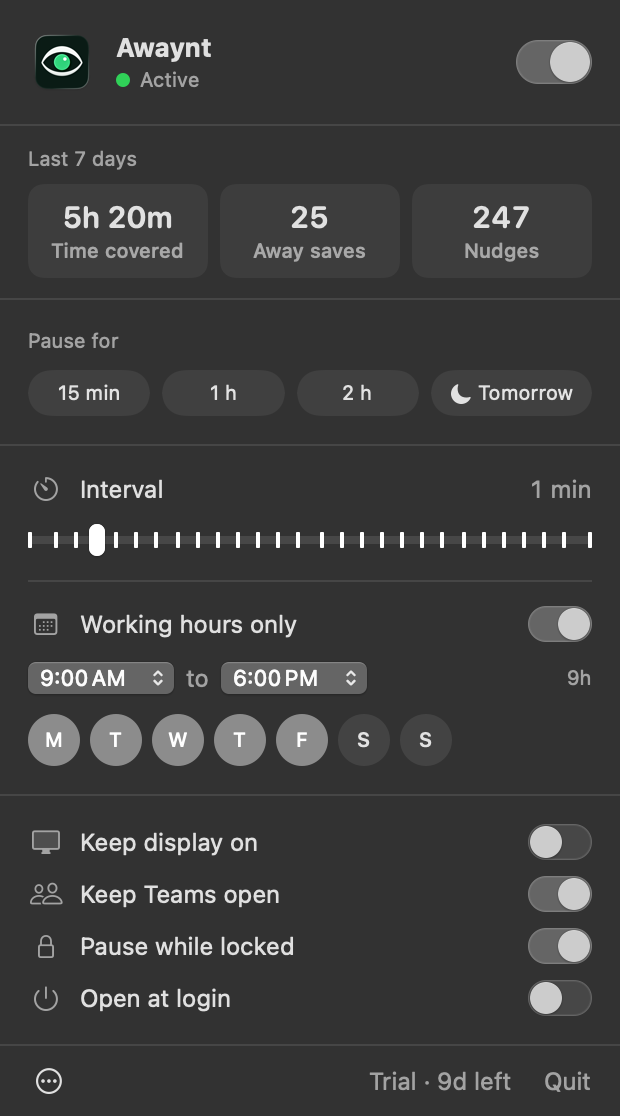
- It only acts while you’re away. It waits until you’ve been idle for two minutes, then nudges the pointer a few pixels and back. While you work it does nothing.
- It always beats Teams' five minutes. It checks at least every two minutes, so the first nudge lands within about four minutes of your last key or click.
- It’s easy to pause. From the menu bar: 15 minutes, 1 or 2 hours, or until tomorrow. Pro adds working hours, so it rests outside them, and pauses while your Mac is locked.
- It doesn’t hide. It sits in the menu bar and in your Applications folder like any other app.
- Nothing leaves your Mac except a license check and an update check. No account, no analytics.
It needs macOS 13.5 or later and runs on Apple silicon and Intel. The free version does the core job for good; Pro is a one-time USD 14.99.
Before you use one at work
A jiggler changes what your status says about you, so it’s worth being clear with yourself about why you’re using it. Covering a five-minute break is one thing. Looking busy while you’re gone for an hour, or letting a time tracker bill a client for time you didn’t work, is another. We wrote about where that line is in Is it OK to use a mouse jiggler at work?
And if what you actually want is a Mac that doesn’t fall asleep during a download, you don’t need a jiggler at all. See Keeping your Mac awake isn’t the same as staying Available.
The short version
- A jiggler moves the pointer so the Mac’s idle timer stays low and chat apps don’t mark you Away.
- USB jigglers are simple but run all the time; apps can wait until you’re idle and respect pauses, hours and locking.
- Look for idle-only movement, a check fast enough for Teams' five minutes, tiny moves and an easy pause.
Download Awaynt for free if you’d like a jiggler that stays out of your way while you work.