Why Teams shows you as Away after five minutes
Microsoft Teams marks you Away after five minutes without a key press or click, and you can’t change that timer. Here’s how it works on a Mac, how Slack and Zoom compare, and what you can actually do about it.
You get up to refill your coffee, answer the door or let the dog out. When you sit back down, the dot next to your name in Microsoft Teams has turned yellow and says Away, and a colleague has already asked whether you’re still working today.
It isn’t a bug, and nobody flipped it by hand. Teams has a fixed inactivity timer, and it’s shorter than most breaks.
The five-minute rule
Microsoft’s own support page, Why does Teams say I’m away when I’m not?, spells it out: Teams sets your status to Away after about five minutes of inactivity, and also when your computer goes to sleep. The same page says you can’t change the inactivity timeout.
"Inactivity" here means the computer hasn’t seen any input from you: no key press, no click, no pointer movement. Reading a long document, watching a training video or sitting on a call from your phone all look the same to Teams as an empty chair.
How your Mac decides you’re idle
Teams doesn’t watch your camera or guess from your calendar. It asks macOS a simple question: how many seconds since the last keyboard or mouse event? macOS keeps that number for the whole system, and any app can read it. Every time you type or move the pointer, it drops back to zero.
That has a few consequences worth knowing:
- It doesn’t matter which app you’re using. Typing in Word, scrolling in Safari or moving the pointer over the desktop all count. You don’t have to be inside Teams.
- Keeping the screen on doesn’t help. A Mac with its display awake and nobody touching it is still idle. Apps that stop your Mac from sleeping don’t reset that counter, which is why they don’t keep you green. We wrote more about that difference in Keeping your Mac awake isn’t the same as staying Available.
- Your phone doesn’t count for your desktop. Microsoft’s troubleshooting notes point out that being active in Teams on your phone while your computer sits idle can still leave you Away.
Teams, Slack and Zoom compared
Each chat app runs its own timer. Teams is the strictest of the common ones, so anything that keeps you Available in Teams covers the others too.
| App | Marks you Away after | Can you change it? |
|---|---|---|
| Microsoft Teams | About 5 minutes of inactivity | No |
| Slack (desktop app) | 10 minutes of inactivity | No, but you can set yourself as active or away by hand |
| Zoom Team Chat | A number of minutes you choose | Yes, in Team Chat settings, or turn it off |
Slack’s numbers come from its help article Set your Slack status and availability. Zoom’s setting sits in the Team Chat preferences as "Change my status to Away when I am inactive for … minutes".
What you can do about it
There are four honest options, from simplest to most automatic.
1. Set a status message
The workaround Microsoft suggests is a status message: click your profile picture, choose Set status message, write something like "Back in 10" and pick when it clears. It doesn’t stop the yellow dot, but it tells people what’s going on, which is often the real problem.
2. Set your status by hand
You can pick Available, Busy or Be right back yourself and give it a duration. Be right back is the most accurate choice for a short break. People report mixed results with forcing Available while idle, so don’t rely on it to keep you green.
3. Lock your Mac when you leave for longer
If you’re stepping away for more than a short break, the right thing is to lock your Mac (Control-Command-Q) and let your status show it. Many companies require that for security anyway.
4. Let something nudge the pointer during short breaks
For the coffee-and-door kind of break, the problem is simply that five minutes is too short. A tool that moves the pointer a few pixels after you’ve been idle for a while resets the idle counter, so Teams never reaches its five minutes.
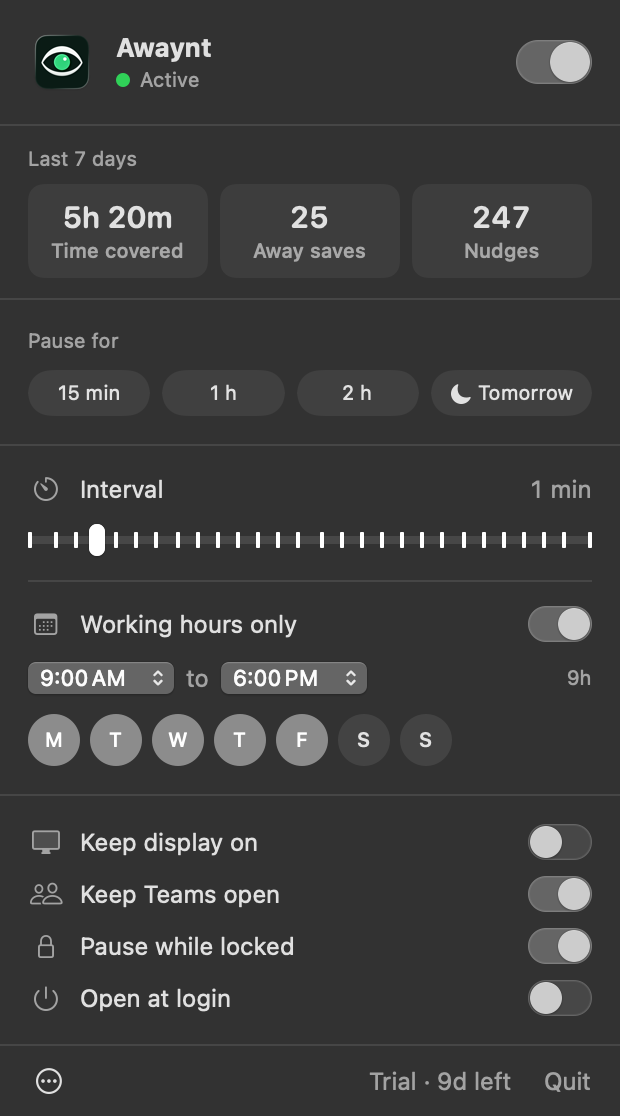
That’s what Awaynt does. It waits until you’ve been idle for two minutes, nudges the pointer a few pixels and back, and checks again at least every two minutes, so it always steps in before Teams' five. While you’re working it does nothing at all. You can pause it from the menu bar for 15 minutes, an hour, two hours or until tomorrow, and the Pro version rests outside your working hours and while your Mac is locked.
Before you use any tool like this at work, read Is it OK to use a mouse jiggler at work?. The short version: it’s for short breaks, not for being gone, and your company’s rules come first.
The short version
- Teams marks you Away after about five minutes without a key press, click or pointer movement, and you can’t change that.
- It reads your Mac’s system-wide idle time, so keeping the screen awake or using Teams on your phone doesn’t count.
- Slack waits ten minutes and Zoom lets you choose, so Teams is the one to beat.
- For short breaks, a status message, Be right back, or a quiet pointer nudge all work. For longer ones, lock your Mac.
If short breaks are the problem, download Awaynt for free and try it.